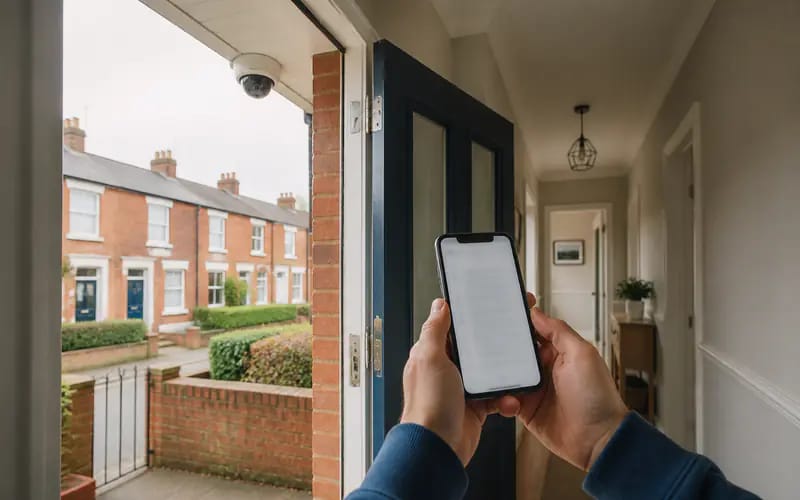
CCTV access from your phone or tablet is becoming more and more common. Most modern CCTV systems support this remote viewing straight out of the box, but setting up remote access to properly secure CCTV systems can take a few steps which need to be done correctly.
Check What Your Recorder Supports
Start with the recording device. Most modern recording devices (NVRs or DVRs) will support remote viewing of your CCTV. However, older models may require a firmware update in order for the remote viewing to function. If your recording device is old enough, it may not be possible to enable remote viewing without upgrading to a more modern recording device. You can check the model number on the front or rear of the unit and search for this on the manufacturer’s website to find out what version of firmware it is currently running and if there are any newer versions available.
Choose Cloud App Over Port Forwarding
For remote viewing of your CCTV footage there are generally two methods available to you: Cloud App viewing (often referred to as P2P) and the use of Port Forwarding on your router. For the small user, P2P cloud viewing is generally the best method as it is simple to set up and does not require the user to have any IT knowledge to configure. Port Forwarding opens up a port on your router and if not configured correctly, can leave your router open to the world – not a desirable scenario. The manufacturer’s own cloud app connects to your viewing platform for you.
Pair The App With Your System
You can pair the app with your system using a sticker on the rear of the recorder that contains a device ID or QR code. Typically you would scan the QR code using the app or enter the device ID manually (found in the ‘network’ or ‘P2P’ menu on the rear of the recorder) to pair the app with your recorder without having to refer to your router for your IP address.
Lock Down Login Security
Change the default password for the app as soon as possible. Make sure to choose something long and unique and avoid using a previous password. Also consider enabling two-factor authentication where possible. The National Cyber Security Centre provide a number of guides on securing smart devices and apps, and most of this will apply to your CCTV system as well. Many CCTV systems will class as personal data and therefore need to be secured in line with the CCTV use data protection rules, especially if you are monitoring areas such as entrances, car parks and pavement areas and therefore could be classed as a public area. CCTV Gloucester is covered in more detail at APM Fire and Security.
Test On Wifi And Mobile Data
Open up your app in the first place on wifi in your shop, then head out of the building on mobile data and try and access your CCTV footage. Many apps will work on wifi but not on mobile data, due to the different way in which each connection to the internet works. So it is worth checking this out thoroughly before relying on your remote viewing. For CCTV installation in Gloucester for example, it is wise to test this out before you need to in an emergency situation such as an out-of-hours alarm call.
Set Up Separate Staff Logins
One user account may not be sufficient for all users of a CCTV system. Most apps allow for the setup of sub-accounts for other users with restricted access to functions such as live viewing and playback of recent recordings. It is also wise to restrict what a keyholder can do with a CCTV system and prevent them from changing settings, deleting recordings or adding new users. Many people have been caught out by shared login details being passed around to various staff members over time and having no idea who is currently accessing the system. Access for ex-employees should be removed immediately.
Keep Firmware And Apps Updated
It is important to remember that manufacturers release updates to firmware to fix any security flaws found. Updates should be applied to both the recorder and app from time to time and treated with the same seriousness as other security measures for your premises. This is outlined in the national surveillance camera code of practice for the responsible operation of systems’ operating software.
Revoke Access When Needed
Keep a current list of the phones and staff with access to your CCTV system. Remember that phones are lost and staff leave all the time and therefore all access to your CCTV system should be logged out remotely or the sub-account disabled from the main admin login as soon as possible. Remember also to check who is currently staff from time to time and compare this with the access list for your CCTV system. For more information on community safety initiatives and how CCTV is used as part of a overall security solution for premises, see Gloucester City Council’s community safety initiatives.
Setting up remote access for CCTV installation in Gloucester isn’t difficult, but it needs to be done correctly!